 SAL - AI
Insights / Guides
How to sign up for a ChatGPT ads account in Vietnam
SAL - AI · Updated: 07/10/2026
To run ChatGPT ads, you need an advertiser account in OpenAI's Ads Manager. Signing up has three parts: business information, account information and payment. This article goes through each screen of the Vietnamese-language interface.
What you need
- An OpenAI account to sign in.
- The legal name of the business, exactly as on the business registration certificate.
- The business's live website.
- An international payment card. The interface shows the Visa, Mastercard, American Express and JCB logos.
Step 1. Go to Ads Manager
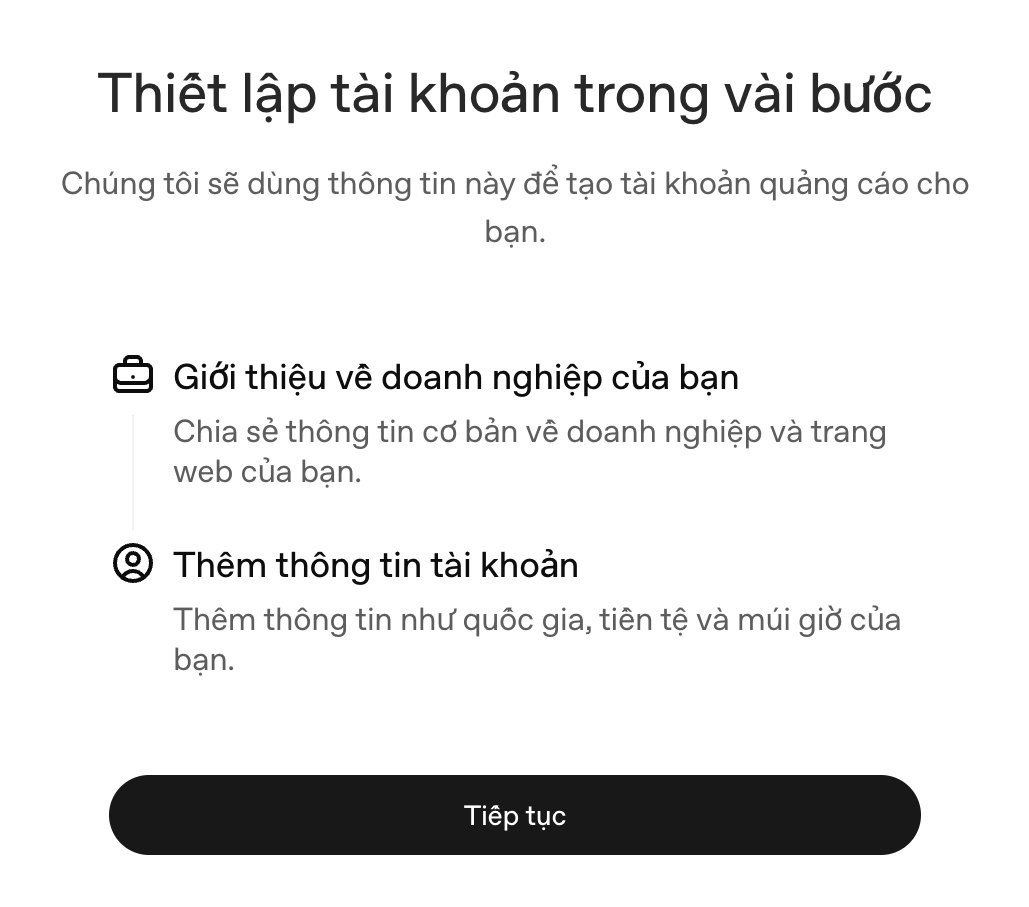
Go to ads.openai.com and sign in with your OpenAI account. On your first visit, the system shows an introduction screen with the two sections to fill in. Click Continue.
Step 2. Enter business information
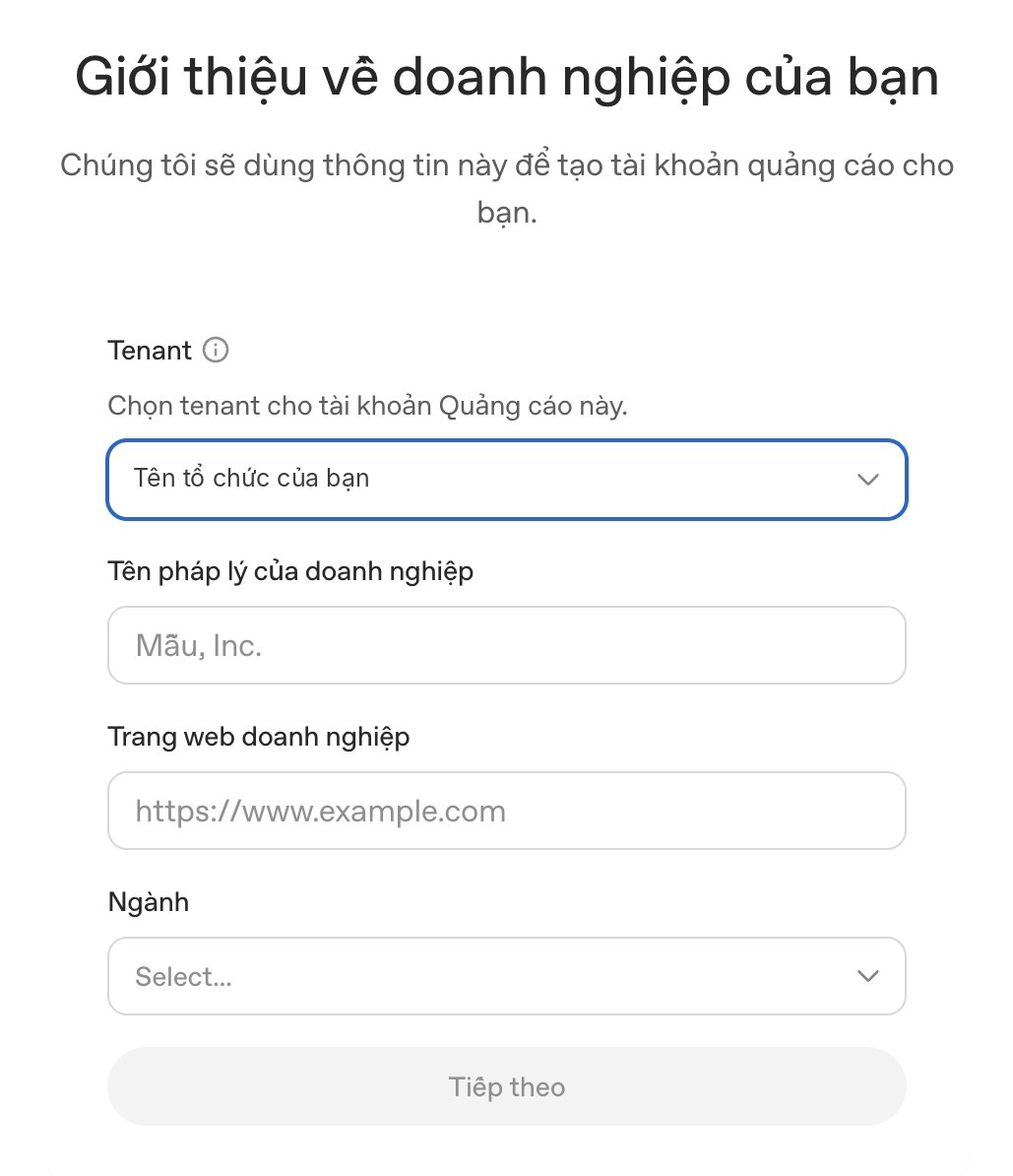
- Tenant: the organisation in your OpenAI account that this ad account will belong to. If you have several organisations, choose the one for the business that will run the ads.
- Legal business name: enter it in full as on the business registration certificate.
- Business website: paste the main website address, including
https://. - Industry: choose the group closest to your field. For example, consulting firms and agencies choose Professional services.
The Next button only becomes clickable once all four fields are filled in.
Step 3. Confirm country, currency and time zone
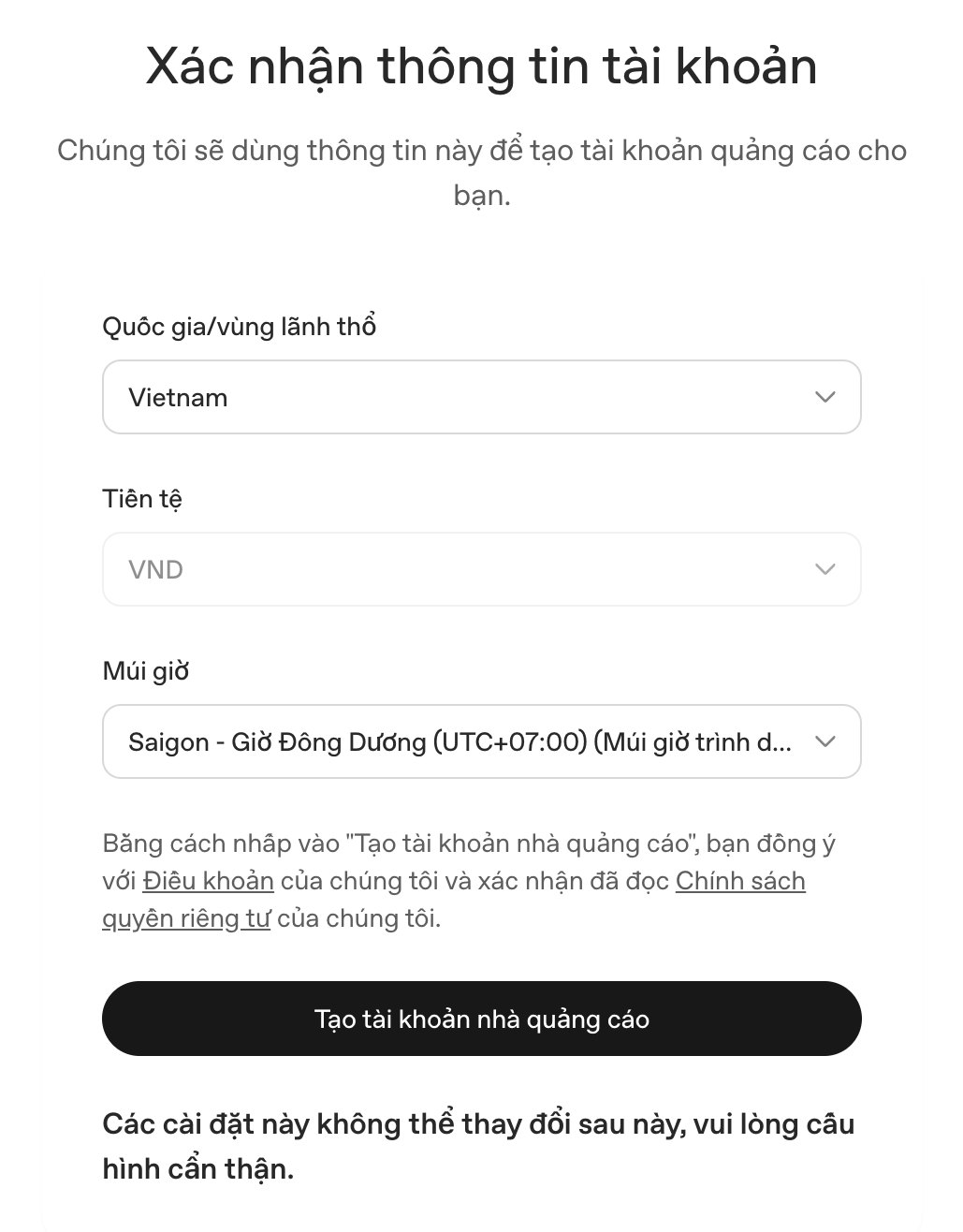
- Country/region: choose Vietnam.
- Currency: when you choose Vietnam, this field shows VND.
- Time zone: choose Saigon, Indochina Time (UTC+07:00). The time zone determines how reports are split by day.
Important: right below the create account button there is a warning that these settings cannot be changed later. If you choose the wrong country, currency or time zone, you will have to create another ad account. Read everything through once more before clicking Create advertiser account.
Step 4. Create your first campaign
After the account is created, the flow takes you to creating your first campaign, covering the campaign, ad group, ad and review. These steps are explained in detail in the article How to run ChatGPT ads: from creating a pixel to launching a campaign.
If you haven't set up conversion tracking yet, save the campaign as a draft, install the pixel, then come back to finish it.
Step 5. Set up payment
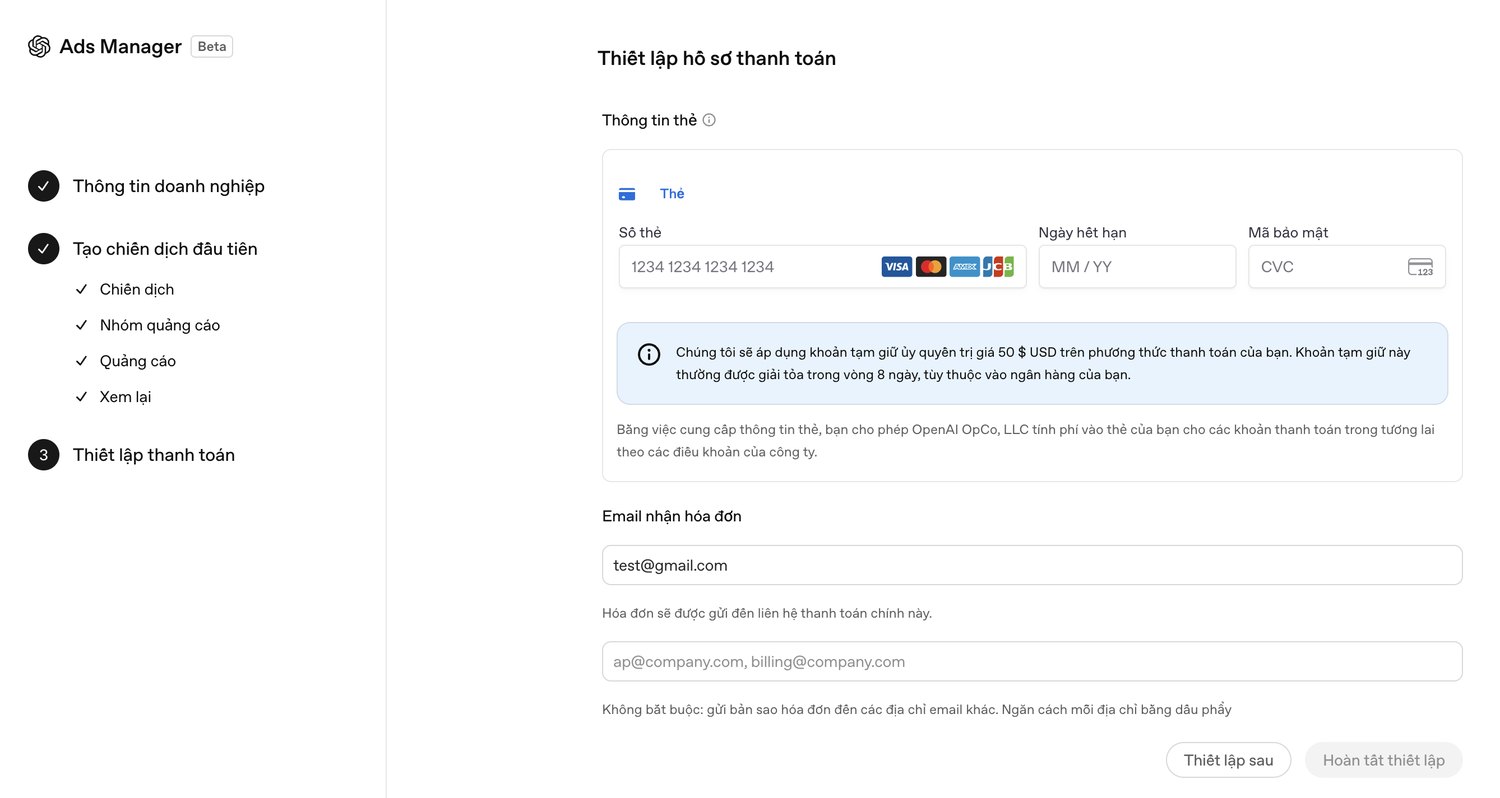
- Card details: enter the card number, expiry date and security code.
- 50 USD hold: the interface states that OpenAI will place a 50 USD authorisation hold on the card for verification, and this is usually released within 8 days depending on the bank. It is a hold, not a fee.
- Invoice email: enter the email of the person in charge of accounting. You can add other emails to receive copies, separated by commas.
If you're not ready yet, you can click Set up later. However, ads need a payment method before they can run.
What to know before signing up
- The card must support international payments. Make sure international online transactions are enabled on the card and it has enough limit for the hold.
- Each business should use one ad account. Each time you go through this flow, a new account is created. Extra accounts easily cause confusion when installing the pixel and viewing reports.
- Agencies running ads for clients: have the client use their own business name and payment card, so the data and invoices belong to the client.
- Check your industry first. Some industries are restricted or not allowed. See What are ChatGPT ads.
Screenshots in this article were taken from the Ads Manager interface (Beta) in 10/2026. OpenAI may change the interface, the steps and the hold amount.
Need help with the setup?
SAL - AI helps businesses sign up for an account, set up tracking and plan ChatGPT ad campaigns. The first consultation is free.
See our ChatGPT ads service